
Magento + Mosaicora: Generate Better Social Previews
Connect Magento to Mosaicora to generate more relevant social previews from store-scoped settings, page-specific content, and structured image hints.
You will learn
- Connect a Magento store view to the right Mosaicora site
- Control title, description, and image sources for catalog and CMS pages
- Map semantic content hints and verify the published social preview
The direct answer
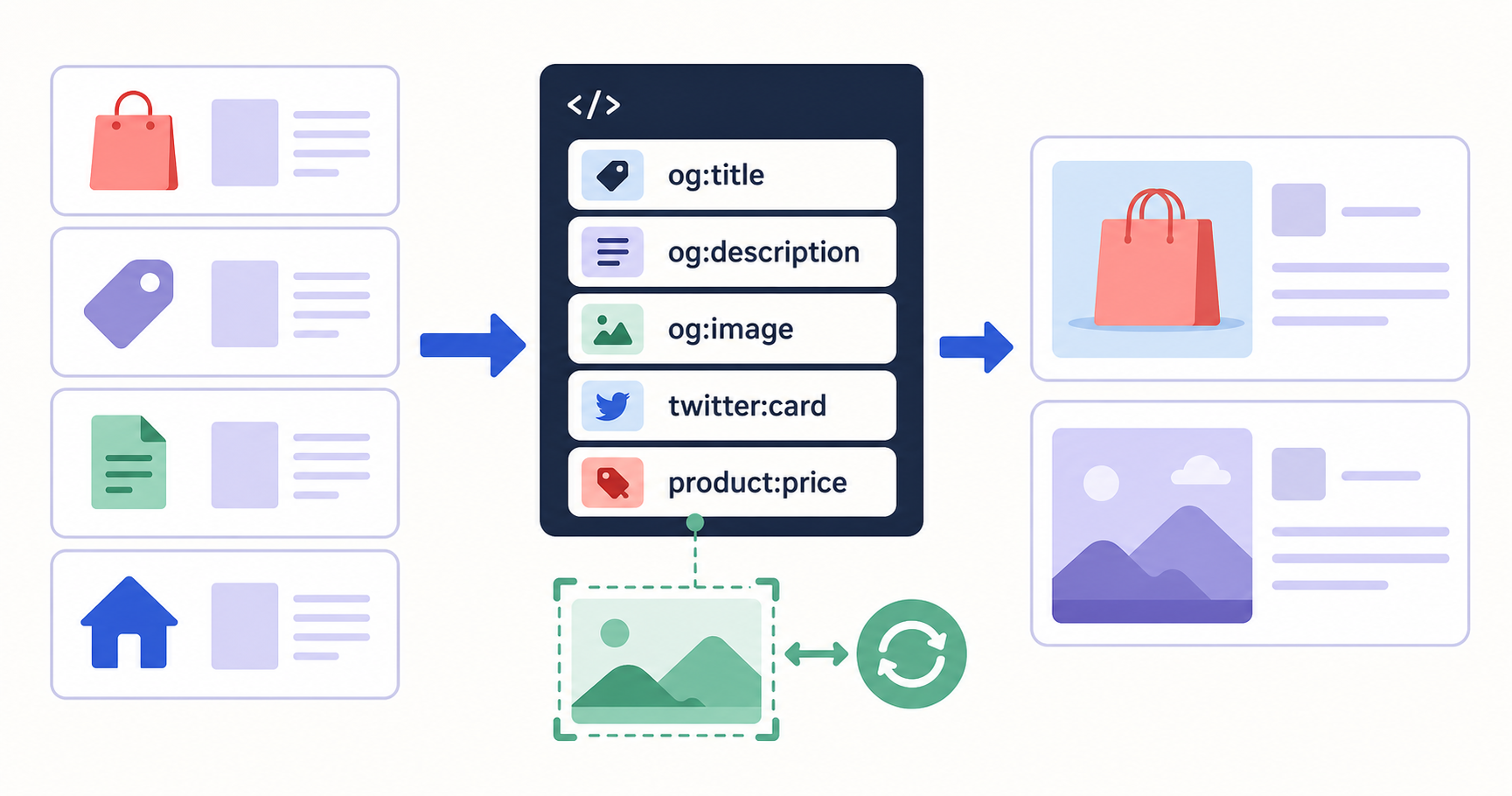
The Mosaicora integration lets Magento, Mage-OS, and Adobe Commerce stores use store-scoped Open Graph settings, page-specific content sources, and semantic JSON-LD hints to generate more relevant social-preview images. Connect a public Mosaicora Site ID, choose dependable content fields, map the attributes that describe each entity, and verify the public storefront result before sharing.
Why connect Magento to Mosaicora for social previews
A shared product, category, or CMS page should make sense before someone visits it. The integration gives the Magento Open Graph module a Mosaicora Site ID to use for the selected store view, so a generated preview can reflect the resolved page context instead of relying on one generic image.
- Keep social-preview rules aligned with the Magento content your team already maintains.
- Use different Mosaicora sites and defaults when store views need distinct brand or campaign treatments.
- Retain page-level control when a category, product, or CMS page needs a deliberate title, description, or image source.
- Pass structured attributes as content hints so generated images can better reflect the entity being shared.
Start with the module foundation
Use the original guide for installation, the standalone local-image fallback, duplicate-tag handling, and the REST and GraphQL metadata surfaces.
Connect the intended Magento store view
In Magento Admin, open Stores, Configuration, Mosaicora, Open Graph. Select the website and store view before saving settings. Under Mosaicora Image Generation, enable Mosaicora and paste the public Site ID from the matching Mosaicora site. The Site ID identifies the image configuration. It is not a secret credential.
Store-view connection checklist
- The selected Magento store view matches the intended customer-facing storefront.
- Mosaicora is enabled and the public Site ID belongs to the matching Mosaicora site.
- Open Graph tags and the desired Twitter Card behavior are configured for that scope.
Choose reliable content sources for every page type
The integration resolves page context from Magento, then lets you override it where a campaign or editorial page needs more control. Use the store-view defaults for a dependable baseline and the Open Graph fields on individual entities when their shared message should differ from the storefront’s standard metadata.
Map structured content into Mosaicora image hints
Advanced Mosaicora Image Hints map product attributes, category attributes, and CMS fields to semantic roles. When Mosaicora is enabled, the module uses those mappings to publish structured JSON-LD context alongside the page. Choose fields that genuinely describe the page, such as a product’s material or category, rather than adding values only for an image generator.
Customize the generated preview in Mosaicora
Once Magento is connected to a Mosaicora site, use the OG Designer to tailor the generated image without changing Magento templates. Start from a preset, load a public storefront page into the live preview, and review how the resolved page content appears in the selected design.
Open the OG Designer
Choose a preset and customize how connected Magento content appears in generated social-preview images.
- Use Auto when a design should follow metadata from the connected Magento storefront.
- Use Custom to provide deliberate text or content for a specific design.
- Use CSS to define selectors that retrieve content from specific elements on the connected page.
Use the live storefront, then test the public preview
After saving configuration, flush the relevant Magento caches and inspect a public URL from the intended store view. Confirm that the initial HTML contains one consistent set of social tags, that the image is publicly reachable, and that the preview describes the page a visitor will reach.
Try the live integration
Explore the demo storefront, then open a checker result with a representative product URL already filled in.
Before sharing a storefront URL
- Check the page title, description, canonical URL, image, and image dimensions.
- Confirm product-specific metadata is accurate where the storefront publishes it.
- Check that no theme or extension emits competing social metadata keys.
Request a Magento preview audit
We will review three representative public URLs, identify social-preview metadata problems, and reply asynchronously with one practical setup proposal.
Prefer to continue on your own? Open the free checker