
Why Your Link Preview Looks Wrong on LinkedIn and How to Fix It
Diagnose LinkedIn preview problems caused by stale cache, incomplete Open Graph tags, protected images, redirects, or client-only metadata.
You will learn
- Identify whether the page, image response, or LinkedIn cache is at fault
- Meet LinkedIn's documented sharing metadata and image requirements
- Use Post Inspector without treating cache refresh as the only fix
The direct answer
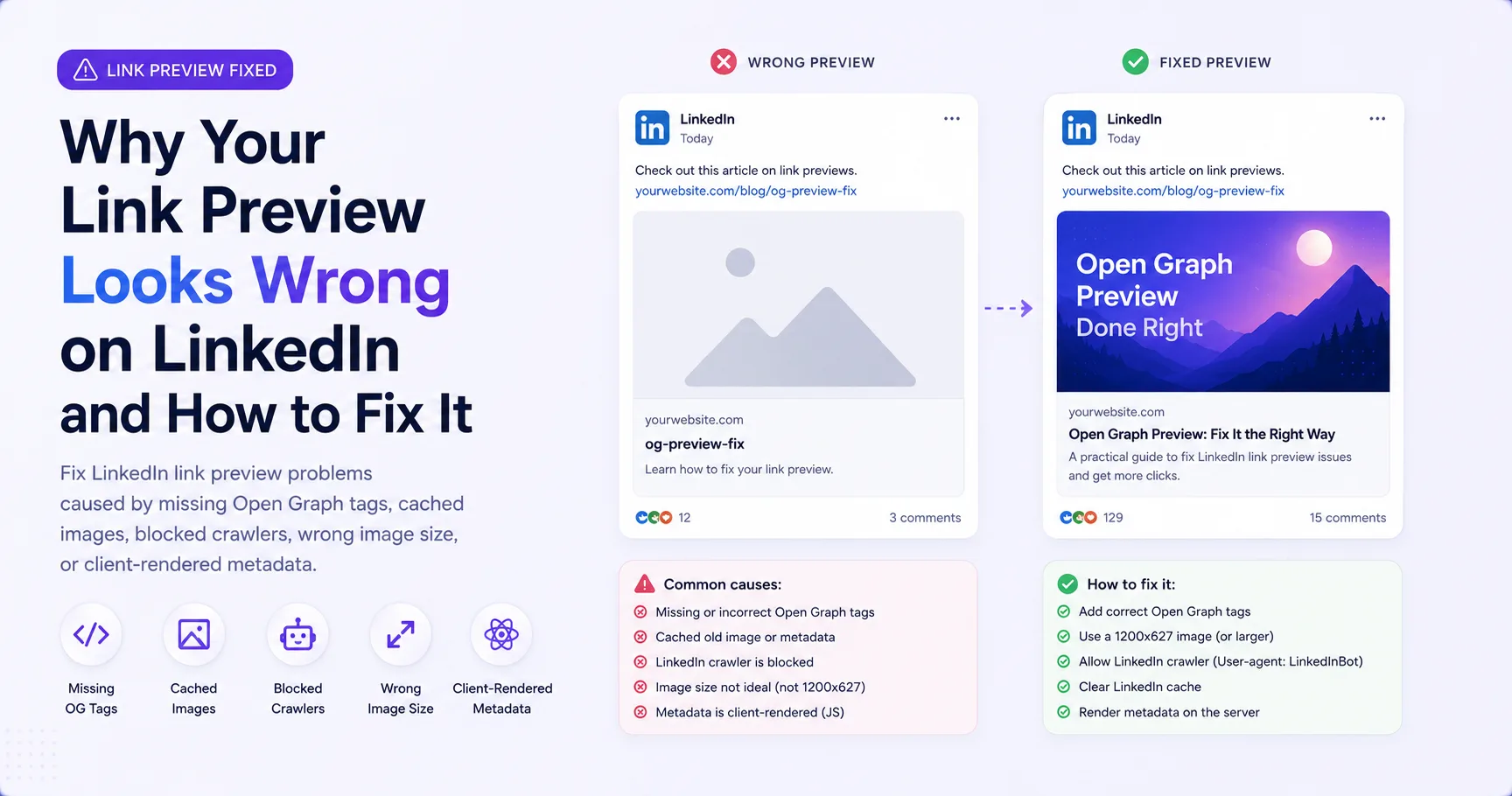
A wrong LinkedIn preview usually comes from the metadata LinkedIn fetched, its ability to access the image, or a cached earlier result. Check those layers in that order.
Match the symptom to the likely cause
- No image often points to a missing tag, blocked request, unsupported response, or image that does not meet the sharing requirements.
- An old image often points to cached metadata or a reused image URL.
- A generic site image often means the page-specific metadata fell back to layout defaults.
- A wrong title or description often means the canonical page response differs from what you see after hydration.
- A small thumbnail can indicate an undersized source image.
Do not start by repeatedly refreshing the preview. First establish what the current page actually returns. Otherwise a cache tool can re-fetch the same broken contract.
Check the LinkedIn sharing baseline
LinkedIn currently asks shareable pages to provide og:title, og:image, og:description, and og:url. Its help documentation lists a maximum file size of 5 MB, minimum dimensions of 1200 by 627 for the sharing module, and a recommended 1.91:1 ratio.
LinkedIn-specific checks
- Provide page-specific title, image, description, and URL tags.
- Use a landscape image at least 1200 by 627 for the documented sharing module target.
- Keep the image below LinkedIn's documented 5 MB maximum.
- Allow unauthenticated requests to the page and image.
- Confirm that security rules do not block LinkedIn from pulling the asset.
Fix the source before the cache
Inspect the initial HTML of the canonical URL and verify that it contains the intended values. Then open the image URL in a private window. If either response is wrong, fix the website or delivery layer before using Post Inspector.
Temporary-looking fix
Refresh the same broken page
Post Inspector fetches the URL again, but the page still exposes an old image or the image request remains blocked.
Durable fix
Correct the contract, then refresh
The public HTML and image response are correct before LinkedIn is asked to fetch the page again.
Handle cache without guesswork
Use LinkedIn Post Inspector after the source is correct. It can show the fetched preview and prompt LinkedIn to inspect the page again. If a major image revision still uses the same URL, publish the new asset at a versioned URL and update og:image.
Prevent repeat issues
Publishing safeguards
- Generate metadata from the same content record used to render the page.
- Validate required values before publication.
- Use stable public image hosting with the correct response type.
- Keep important preview text inside a centered safe area.
- Test one LinkedIn share whenever the template or delivery system changes.
Inspect the source before refreshing LinkedIn
Check what your live page exposes so you can fix the underlying metadata or image response first.
Debug the page metadata